![Intuitive logo RGB-1.png]](https://help.intuitivebusinessintelligence.com/hs-fs/hubfs/Intuitive%20logo%20RGB-1.png?height=40&name=Intuitive%20logo%20RGB-1.png)
Creating the Connection
Your first area is to create a new Connection for Toshiba e-FOLLOW Cloud.
This can be accessed under the Main Menu under Connection Builder -> New Connection

Select Toshiba e-FOLLOW Cloud on the left hand-side.

For each of the fields onscreen, you will need to supply the URL to the Toshiba e-FOLLOW Cloud system. Secondly, you will need to enter in the API key that you have generated from the customers’ implementation of Toshiba e-FOLLOW Cloud.

The API Token can be generated within the e-FOLLOW Cloud UI under Settings -> General -> Database / Support:
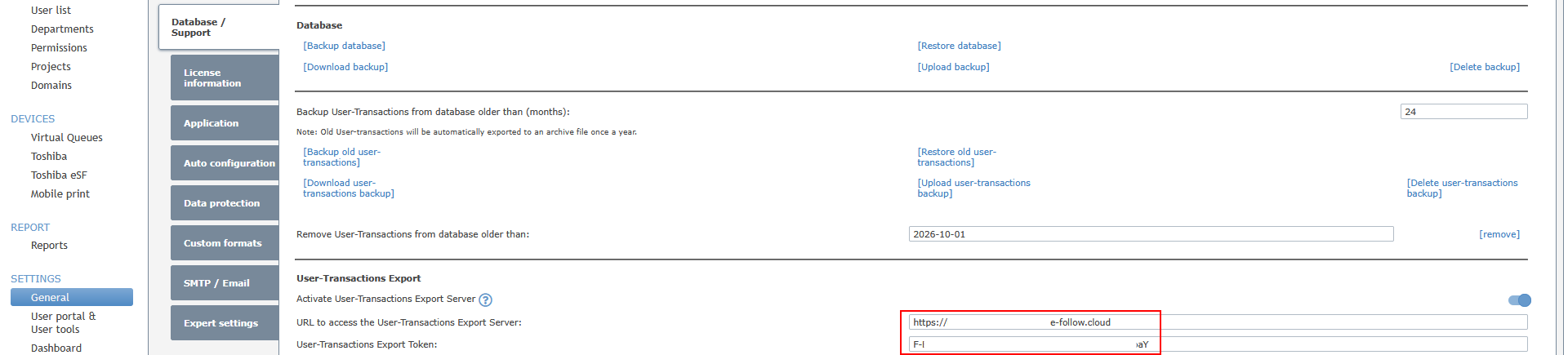
Thirdly, you need only enter in the number of days to export from the e-FOLLOW Cloud system. The default you will want to supply is 730 days. Whilst you can enter more, consider the impact on the e-FOLLOW Cloud resources and the relevancy for that customer. In some instances, you may only be able to retrieve up to 30 days from the API, but Intuitive will build up this data incrementally over time.

Lastly, the Configuration Data is a section for how Intuitive handles the API results. This text can be found on the Intuitive Knowledge Base here.
With that data entered in, you can also edit the pre-configured SQL View for how Intuitive aggregates and presents the data. This step can be considered as optional, but if the customer has requested modifications to what data points are supplied to dashboard fields, then this is the area you change. This is also an area that is cited during support procedures. When you click on the Edit View SQL button, you are prompted with a popup for ensuring that changes are made at your own risk, so ensure to take backups of this SQL should you need to revert your changes. The main areas to change are at the top of the SQL Editor - particularly around time ranges retrieved (SQL_View_Date_Range) and main configuration columns (e.g. [User])

One change in this version of the software is around scheduling. Previously, there were several schedules – one for the ETL (retrieving the data) and a secondary schedule for refreshing the datafeeds (from our collated data). Instead, this schedule is tied into one place – the Connection itself. When applying the schedule, select the “Calendar” shaped icon, and set the Schedule to your defined time. Should you wish to run the schedule more than once per day, please consult with Intuitive beforehand.

The final step for the Connection is to Save via the Floppy Disk, and to name the Connection as the full legal name of the customer, then publish the Connection to a restricted area under the “Toshiba Administration” group.


Users
Creating Users follows a similar practise to previous iterations of the software. This is performed via Admin -> Users, and Users are added by clicking the “+” icon.

When adding a user, the fields onscreen marked in red are mandatory. One key change in this version of the software are the settings for 2FA and External authentication. Prior to your involvement, you should have defined this requirement as part of the work in Module 1. Typically, you will use 2FA. This is when an internal account is created inside Intuitive, with a secondary authenticator being used to allow users to sign in.
Ensure that you give this new user an appropriate role. For most users, Dashboard Viewer is the most applicable for end-customer scenario's. Consider which users are administrators to the entire platform, and who needs just Dashboard access.

Before moving on to Dashboard access, again during Module 1 you should have defined the security requirements surrounding this implementation. In some cases, users may need to be locked down to only viewing particular parts of the data stream. Typically, this is a Cost Centre of some measure, perhaps an Office or a Location. The actual content of the filter is updated in the SQL View field marked “User Security Identifier”, but each user utilising this filter will need the corresponding "User Security Identifier" box ticked with their value entered in, e.g. Sales, Marketing.

Finally, we can give the user access to the dashboards on the right hand side. This is as simple as checking the box next to the published area you wish to grant access to. Then, we can save our changes.

Should you need to create several users, you can highlight your new user on the left, then select the “Copy” icon at the top. It will carry over some of the user config you’ve already created, and you need only enter in the information marked in red.


Organisations
Next, we need to assign our Connection to an Organisation. If you recall to the previous module, this is where we also assign currency values to costs. Open the Main Menu, then under Admin, there is “Organisations”.

In this new screen, we need to add an organisation for this customer. This is performed by clicking the “+” icon.

In these fields, enter a name for the customer. Ideally, this is the same company name that your sale was addressed to. For example, if I am performing this implementation for the customer “Stocker Bros.”, my organisation should be named the same.

For the description, you can enter additional information in here, should you wish. This is optional. For example, if this customer has multiple Toshiba Print Management systems, this field can be used for supporting information relating to this.

For the Custom Dataset Field, this is where you enter in the cost symbol that will appear in multiple dashboards. This can be many different special characters, but it’s a piece of text that prefixes costs. Should you not supply a character, this will not cause an issue with usage of the dashboards as the calculated decimal value will just be used. E.g. 0.04 instead of $0.04.

Under the Connections, we need to tie the dashboards to the Customers’ Connection. Click the “+” icon and for the “Master Connection” select Intuitive for Print under Global -> Intuitive for Print. Under “Child Connection” select the Connection you saved earlier in this process. Remember, this is the Connection with the customers’ name or integration name. Then click the tick icon to add these changes.

Finally, we need to attach the relevant users we created earlier to this organisation. Click the “+” icon, and add each of the users to this organisation. If necessary, don’t forget to add your own account here too! Then, we need only save our Organisation.

As a side note, should a user be granted access to the dashboards, but not assigned to an organisation, they would only see the demo data provided in the solution. Should they be assigned more than one organisation, they would only be able to see the first organisations’ data onscreen – not both.
Checking Data Flow
After saving your Organisation, this should have given the API time to retrieve all of the customers’ print data. You can check what data has come back by opening one of our many dashboards via the Main Menu under “View Dashboard”. In some instances, you may need to wait a few minutes for the API to completely receive the results.


Generally, the best dashboards to open are those that may show multi-year data, and is a good visualisation of how much data has been brought back and made available to you.
During the setup of the Connection, you will have specified the number of days to export data from the customers’ Print Management system. In some cases, customers may have been set up within the 730 days we would normally retrieve. This is perfectly fine, as the Connection will only retrieve up to that amount of data, and will only retrieve incremental data since the last data load.