---
title: Implementing the Toshiba e-BRIDGE Global Print Service
description: e-BRIDGE Global Print Implementation
---
[Skip to content](https://help.intuitivebusinessintelligence.com/implementing-the-toshiba-e-bridge-global-print-service#main-content)
English
Show submenu for translations
![Intuitive logo RGB-1.png\]](https://help.intuitivebusinessintelligence.com/hs-fs/hubfs/Intuitive%20logo%20RGB-1.png?height=40&name=Intuitive%20logo%20RGB-1.png)
Open main navigation
Close main navigation
- English
Show submenu for translations
- [Go to weareintuitive.com](https://weareintuitive.com/)
[Go to weareintuitive.com](https://weareintuitive.com/)
Hello. How can we help you?
- There are no suggestions because the search field is empty.
1. [Help Center](https://help.intuitivebusinessintelligence.com/?hsLang=en)
2. [Intuitive for e-BRIDGE Global Print](https://help.intuitivebusinessintelligence.com/intuitive-for-e-bridge-global-print?hsLang=en)
# Implementing the Toshiba e-BRIDGE Global Print Service
**Creating the Connection**
Your first area is to create a new Connection for Toshiba e-BRIDGE Global Print.
This can be accessed under the Main Menu under Connections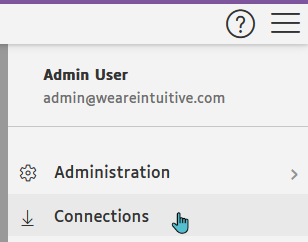
Then by clicking "Add Connection"
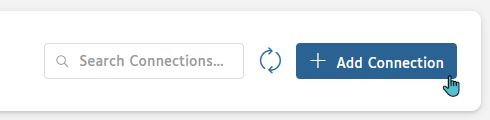
Expand "EXTRACTOR TYPE" and select e-BRIDGE Global Print.

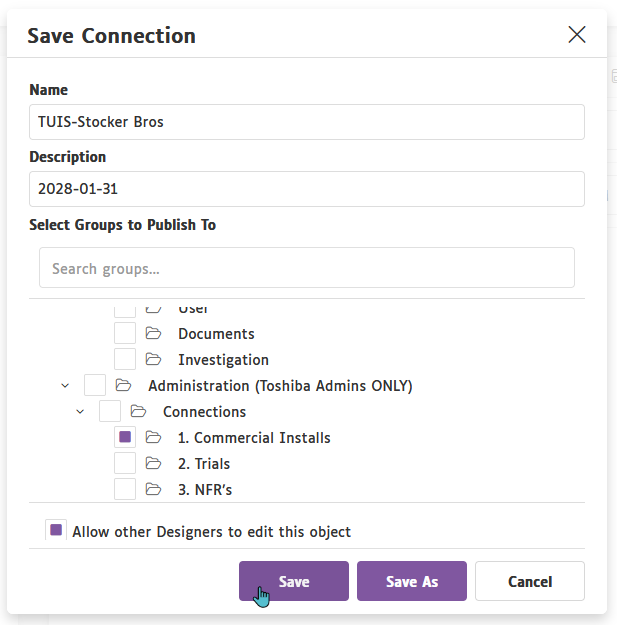
We first start by entering the customer information in the Name field. This is the Toshiba country code e.g. "TUIS", followed by the customer name as it appears in your CRM, i.e. "Stocker Bros".
The "Description" is the expiry date for that implementation, this is in the format of YYYY-MM-DD, e.g. 2028-01-31, for the 31st of January 2028. This description must be updated if the customer renews:

In the tabs on the right, each area must be configured for that customer. Starting with the "API Connection Details", you will be entering in the URL of the e-BRIDGE Global Print tenant, with the field underneath being populated [by the API token.](https://help.intuitivebusinessintelligence.com/implementing-the-toshiba-e-bridge-global-print-service#API-Token-Generation)

Logging in as a Admin to the e-BRIDGE Global Print Portal, then select **MY COMPANY** Tab

Scroll to the bottom of the page and click on “*Allow another system to programmatically access your company's e-BRIDGE Global Print usage data*”
A Pop-Up box will appear and click **Generate Access Token**, then copy it to your clipboard

Moving onto the next tab "API Configuration", the number of days to export is recommended at **730** days. Whilst you can enter more, consider the impact on the e-BRIDGE Global Print resources and the relevancy for that customer. In some instances, you may only be able to retrieve up to 30 days from the API, but Intuitive will build up this data incrementally over time.
"Configuration Data" is a JSON statement for how we handle the results from the e-BRIDGE Global Print API. [The latest copy of this can be found here.](https://help.intuitivebusinessintelligence.com/print-management-api-configuration-data?hsLang=en)

With that data entered in you can also edit the pre-configured SQL View for how Intuitive aggregates and presents the data, by clicking on the "View" tab. This step can be considered as optional, but if the customer has requested modifications to what data points are supplied to dashboard fields, then this is the area you change. This is also an area that is cited during support procedures.
When editing the View, please ensure to take backups of the SQL in the event you need to revert your changes.
The main areas to change are at the top of the SQL Editor - particularly around time ranges retrieved (SQL\_View\_Date\_Range) and the contents of the main configuration columns (e.g. \[User\])

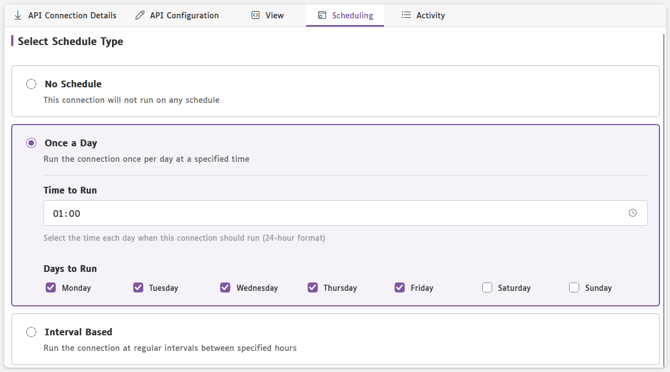
Clicking "Scheduling", set the scheduled refresh time to 1am each day.
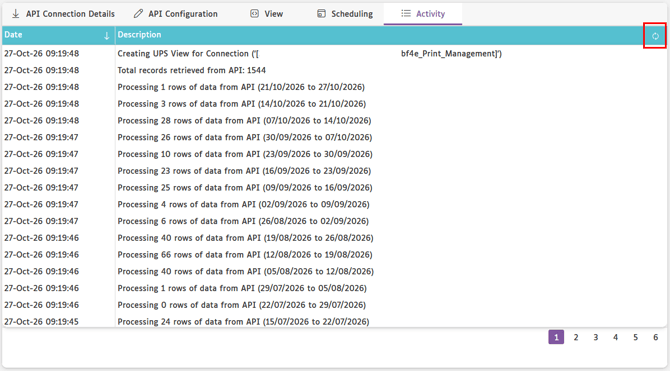
The last tab is "Activity" which will display the logs relevant to this Connection. Information is only visible here after having saved the Connection, so you can check back on this tab to see more. You can also refresh the logs by clicking the icon in the top right***:***
The final step for the Connection is to Save via the Floppy Disk, and to name the Connection as the **full legal name** of the customer, then publish the Connection to the appropriate area under "Administration (Toshiba Admins ONLY)".
1. **Commercial Installs** - Invoiced customers
2. **Trials** - Customers trialling the Print Management software
3. **NFR's** - Showrooms, typically one per product
#### **Users**
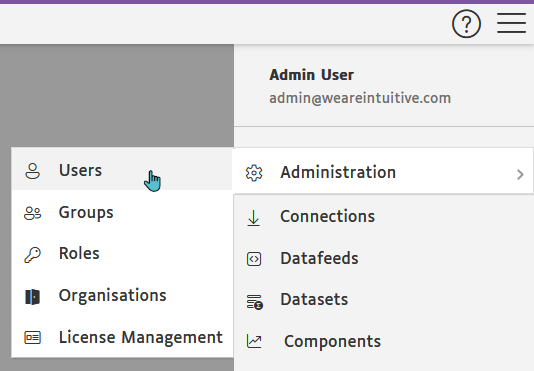
Creating Users follows a similar practise to previous iterations of the software. This is performed via Admin -\> Users, and Users are added by clicking the “+ Add User” icon in the top right.

When adding a user, the fields onscreen marked with the red asterisk are mandatory. For the Shared Toshiba service, you are required to use 2FA. This is when an internal account is created inside Intuitive, with a secondary authenticator being used to allow users to sign in.
Ensure that you give this new user an appropriate role. For most users, Dashboard Viewer is the most applicable for end-customer scenario's. Consider which users are administrators to the entire platform, and who needs just Dashboard access.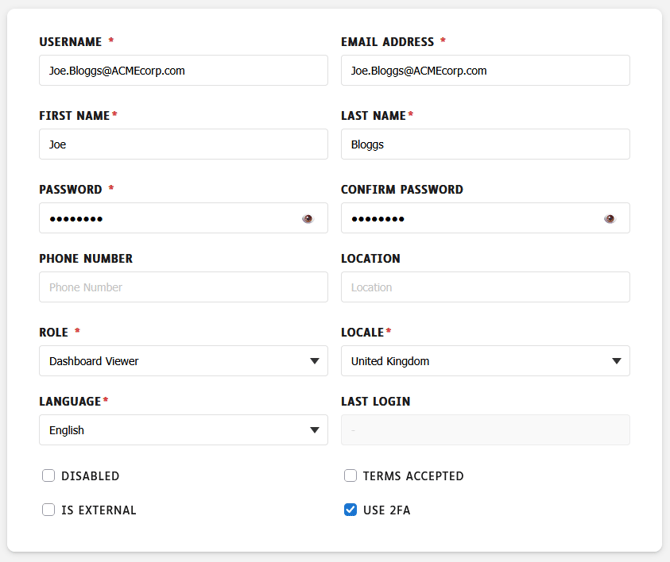
We can give the user access to the dashboards on the right hand side. This is as simple as checking the box next to the published area you wish to grant access to. Then, we can save our changes.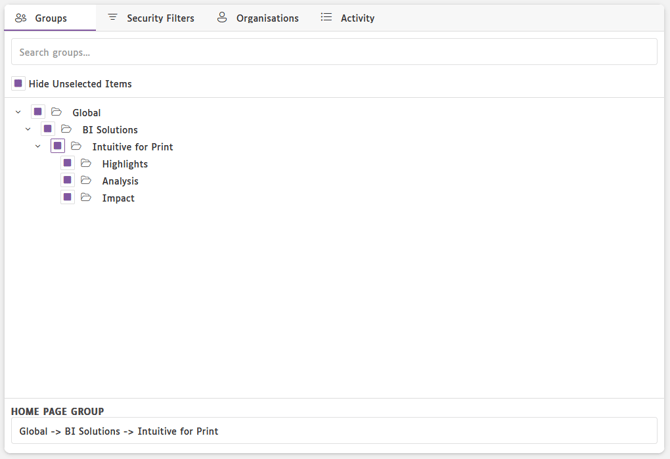
The section marked "HOME PAGE GROUP" is the home directory when users open a dashboard via the Intuitive "i" popup on the left-hand side. Typically, this is "Intuitive for Print".
We can finally assign our user(s) to the Organisation we created in the previous section. You have the flexibility of adding them either per user in the "Organisations" tab, clicking the "+" icon and selecting the Organisation we made earlier.
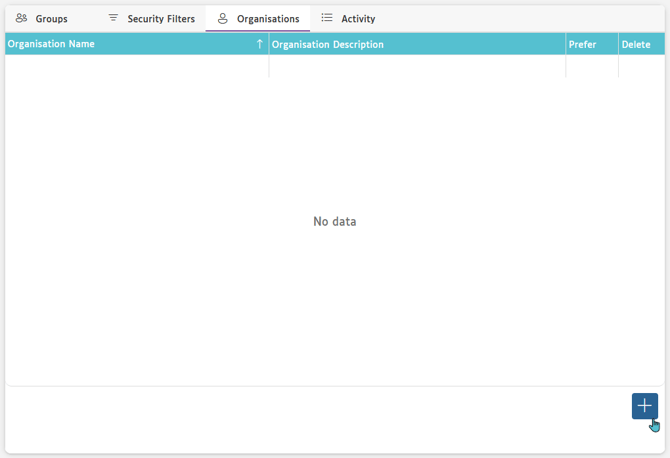
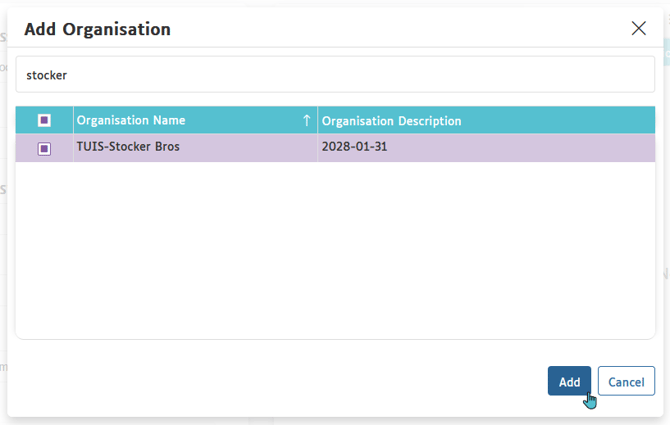
Alternatively, you can add users in bulk when editing the Organisation directly. This is performed by editing the Organisation via the Main Menu -\> Administration -\> Organisations, clicking on the Organisation you created earlier then clicking on the tab marked "Users".
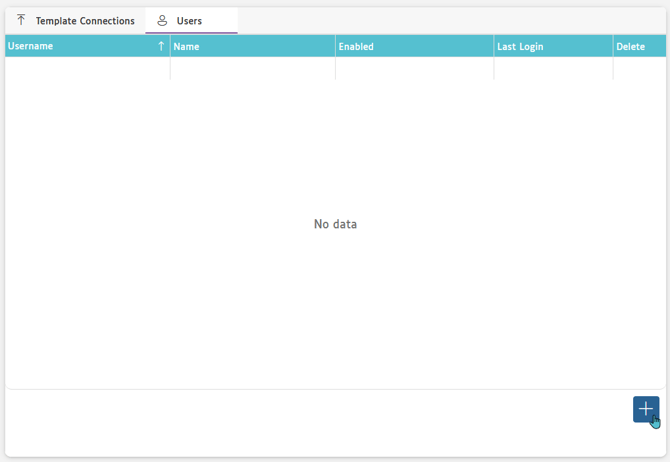
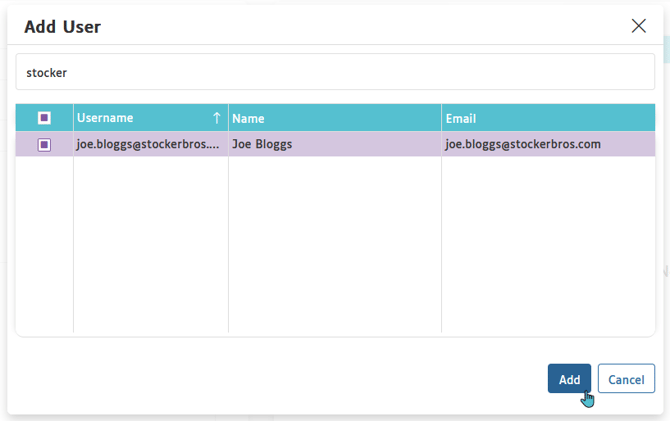
You need only click the "+" icon, and then select the new Users in bulk. You can also Search for key words for selecting that customer base, e.g. their email address "stockerbros".
#### **Checking Data Flow**
After saving the Connection, Organisation and Users, this should have given the API time to retrieve all of the customers’ print data. You can check what data has come back by opening one of our many dashboards via the left Intuitive "i" icon and by checking the "Activity" log via the Connection. In some instances, you may need to wait a few minutes for the API to completely receive the results.
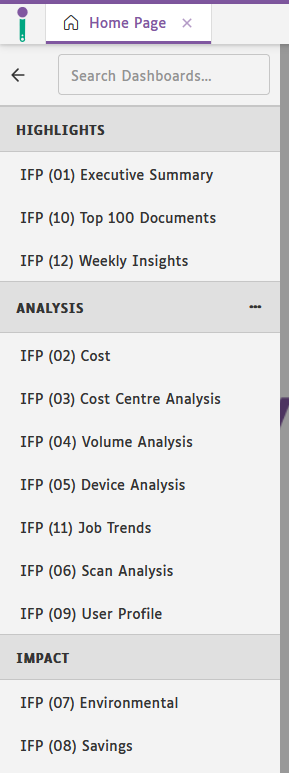
Generally, the best dashboards to open are those that may show multi-year data, such as the "User Profile". This shows a breakdown of print-related activity by Month, and is a good indicator for the amount of data present.
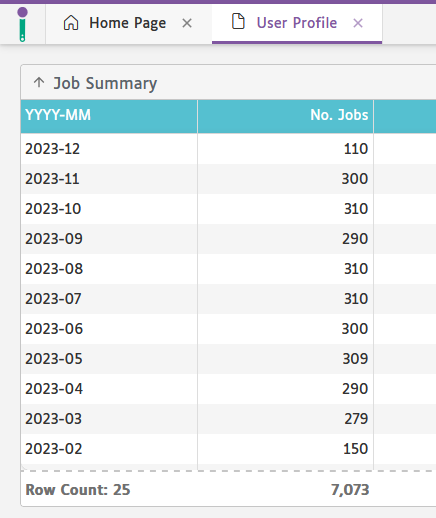
During the setup of the Connection, you will have specified the number of days to export data from the customers’ Print Management system. In some cases, customers may have been set up within the 730 days we would normally retrieve. This is perfectly fine, as the Connection will only retrieve *up to* that amount of data, and thereafter will retrieve incremental data since the last print record.
- [Intuitive Dashboards Core Software](https://help.intuitivebusinessintelligence.com/intuitive-dashboards-core-software?hsLang=en#main-content)
- [Getting Started](https://help.intuitivebusinessintelligence.com/intuitive-dashboards-core-software?hsLang=en#getting-started)
- [Viewing Dashboards](https://help.intuitivebusinessintelligence.com/intuitive-dashboards-core-software?hsLang=en#viewing-dashboards)
- [Interacting with dashboards](https://help.intuitivebusinessintelligence.com/intuitive-dashboards-core-software?hsLang=en#interacting-with-dashboards)
- [Filters](https://help.intuitivebusinessintelligence.com/intuitive-dashboards-core-software?hsLang=en#filters)
- [Connections](https://help.intuitivebusinessintelligence.com/intuitive-dashboards-core-software?hsLang=en#connections)
- [Datafeeds](https://help.intuitivebusinessintelligence.com/intuitive-dashboards-core-software?hsLang=en#datafeeds)
- [Datasets](https://help.intuitivebusinessintelligence.com/intuitive-dashboards-core-software?hsLang=en#datasets)
- [Components](https://help.intuitivebusinessintelligence.com/intuitive-dashboards-core-software?hsLang=en#components)
- [Creating Dashboards and Components - Overview](https://help.intuitivebusinessintelligence.com/intuitive-dashboards-core-software?hsLang=en#creating-dashboards-and-components-overview)
- [Creating Components](https://help.intuitivebusinessintelligence.com/intuitive-dashboards-core-software?hsLang=en#creating-components)
- [Creating a Dashboard](https://help.intuitivebusinessintelligence.com/intuitive-dashboards-core-software?hsLang=en#creating-a-dashboard)
- [Administering the System](https://help.intuitivebusinessintelligence.com/intuitive-dashboards-core-software?hsLang=en#administering-the-system)
- [Administering Users](https://help.intuitivebusinessintelligence.com/intuitive-dashboards-core-software?hsLang=en#administering-users)
- [Administering Groups](https://help.intuitivebusinessintelligence.com/intuitive-dashboards-core-software?hsLang=en#administering-groups)
- [Security Filters - V5.2 and earlier](https://help.intuitivebusinessintelligence.com/intuitive-dashboards-core-software?hsLang=en#security-filters-v5-2-and-earlier)
- [Security Filters - V5.3 Onward](https://help.intuitivebusinessintelligence.com/intuitive-dashboards-core-software?hsLang=en#security-filters-v5-3-onward)
- [Embedding Dashboards](https://help.intuitivebusinessintelligence.com/intuitive-dashboards-core-software?hsLang=en#embedding-dashboards)
- [Configuration File](https://help.intuitivebusinessintelligence.com/intuitive-dashboards-core-software?hsLang=en#configuration-file)
- [Installation & Configuration Guide](https://help.intuitivebusinessintelligence.com/intuitive-dashboards-core-software?hsLang=en#installation-configuration-guide)
- [Version History](https://help.intuitivebusinessintelligence.com/intuitive-dashboards-core-software?hsLang=en#version-history)
- [Intuitive for PaperCut V2](https://help.intuitivebusinessintelligence.com/intuitive-for-papercut-v2?hsLang=en#main-content)
- [Installing Intuitive for PaperCut](https://help.intuitivebusinessintelligence.com/intuitive-for-papercut-v2?hsLang=en#installing-intuitive-for-papercut)
- [Viewing PaperCut Dashboards](https://help.intuitivebusinessintelligence.com/intuitive-for-papercut-v2?hsLang=en#viewing-papercut-dashboards)
- [Editing PaperCut Dashboards](https://help.intuitivebusinessintelligence.com/intuitive-for-papercut-v2?hsLang=en#editing-papercut-dashboards)
- [Intuitive for PaperCut Demonstration Videos](https://help.intuitivebusinessintelligence.com/intuitive-for-papercut-v2?hsLang=en#intuitive-for-papercut-demonstration-videos)
- [Intuitive for PaperCut FAQs](https://help.intuitivebusinessintelligence.com/intuitive-for-papercut-v2?hsLang=en#intuitive-for-papercut-faqs)
- [Intuitive for PaperCut MF V3](https://help.intuitivebusinessintelligence.com/intuitive-for-papercut-mf-v3?hsLang=en#main-content)
- [Installing Intuitive for PaperCut Version 3](https://help.intuitivebusinessintelligence.com/intuitive-for-papercut-mf-v3?hsLang=en#installing-intuitive-for-papercut-version-3)
- [Viewing the dashboards - Intuitive for PaperCut Version 3](https://help.intuitivebusinessintelligence.com/intuitive-for-papercut-mf-v3?hsLang=en#viewing-the-dashboards-intuitive-for-papercut-version-3)
- [Editing PaperCut Dashboards](https://help.intuitivebusinessintelligence.com/intuitive-for-papercut-mf-v3?hsLang=en#editing-papercut-dashboards)
- [Intuitive for PaperCut FAQs](https://help.intuitivebusinessintelligence.com/intuitive-for-papercut-mf-v3?hsLang=en#intuitive-for-papercut-faqs)
- [Intuitive for SAFEQ](https://help.intuitivebusinessintelligence.com/intuitive-for-safeq?hsLang=en#main-content)
- [General Help](https://help.intuitivebusinessintelligence.com/intuitive-for-safeq?hsLang=en#general-help)
- [Software Installation](https://help.intuitivebusinessintelligence.com/intuitive-for-safeq?hsLang=en#software-installation)
- [Solution Expertise](https://help.intuitivebusinessintelligence.com/intuitive-for-safeq?hsLang=en#solution-expertise)
- [Intuitive For Managed Print Services (MPS)](https://help.intuitivebusinessintelligence.com/intuitive-for-managed-print-services-mps?hsLang=en#main-content)
- [Intuitive for MPS - Overview](https://help.intuitivebusinessintelligence.com/intuitive-for-managed-print-services-mps?hsLang=en#intuitive-for-mps-overview)
- [Intuitive for MPS - Installation Steps](https://help.intuitivebusinessintelligence.com/intuitive-for-managed-print-services-mps?hsLang=en#intuitive-for-mps-installation-steps)
- [Intuitive for MPS - Import File Layouts](https://help.intuitivebusinessintelligence.com/intuitive-for-managed-print-services-mps?hsLang=en#intuitive-for-mps-import-file-layouts)
- [Intuitive For MPS - Loading the Data Warehouse](https://help.intuitivebusinessintelligence.com/intuitive-for-managed-print-services-mps?hsLang=en#intuitive-for-mps-loading-the-data-warehouse)
- [Intuitive Cloud Services](https://help.intuitivebusinessintelligence.com/intuitive-cloud-services?hsLang=en)
- [Intuitive for PaperCut Hive V1](https://help.intuitivebusinessintelligence.com/intuitive-for-papercut-hive-v1?hsLang=en#main-content)
- [Viewing the dashboards - Intuitive for PaperCut Hive](https://help.intuitivebusinessintelligence.com/intuitive-for-papercut-hive-v1?hsLang=en#viewing-the-dashboards-intuitive-for-papercut-hive)
- [Intuitive for SAFEQ Cloud](https://help.intuitivebusinessintelligence.com/intuitive-for-safeq-cloud?hsLang=en#main-content)
- [Intuitive Solution Expertise](https://help.intuitivebusinessintelligence.com/intuitive-for-safeq-cloud?hsLang=en#intuitive-solution-expertise)
- [Intuitive Software Provisioning](https://help.intuitivebusinessintelligence.com/intuitive-for-safeq-cloud?hsLang=en#intuitive-software-provisioning)
- [Intuitive for Docuware](https://help.intuitivebusinessintelligence.com/intuitive-for-docuware?hsLang=en)
- [Intuitive for Print Management](https://help.intuitivebusinessintelligence.com/intuitive-for-print-management?hsLang=en#main-content)
- [Solution Knowledge](https://help.intuitivebusinessintelligence.com/intuitive-for-print-management?hsLang=en#solution-knowledge)
- [Technical Information](https://help.intuitivebusinessintelligence.com/intuitive-for-print-management?hsLang=en#technical-information)
- [Intuitive for e-BRIDGE Global Print](https://help.intuitivebusinessintelligence.com/intuitive-for-e-bridge-global-print?hsLang=en)
- [Intuitive for e-FOLLOW Cloud](https://help.intuitivebusinessintelligence.com/intuitive-for-e-follow-cloud?hsLang=en)
- [FAQ](https://help.intuitivebusinessintelligence.com/faq?hsLang=en#main-content)
- [Connections](https://help.intuitivebusinessintelligence.com/faq?hsLang=en#connections)
- [General Enquiries](https://help.intuitivebusinessintelligence.com/faq?hsLang=en#general-enquiries)
- [Datafeeds](https://help.intuitivebusinessintelligence.com/faq?hsLang=en#datafeeds)
- [Datasets](https://help.intuitivebusinessintelligence.com/faq?hsLang=en#datasets)
- [System Compatability](https://help.intuitivebusinessintelligence.com/faq?hsLang=en#system-compatability)
- [Software Installation](https://help.intuitivebusinessintelligence.com/faq?hsLang=en#software-installation)
[](https://help.intuitivebusinessintelligence.com?hsLang=en)
weareintuitive.com Help Center
Copyright © 2026, Intuitive Business Intelligence Limited